So far I have had an iPhone, iPhone 3G, iPhone 3GS an iPhone4S and now an iPhone 5!! I missed out on a iPhone 4 as I didn't think the upgrade was worth it and after the antennagate stories started appearing I decided not to touch it with a bargepole.
I should also mention my experience with the iPhone4S, the phone itself was great, nice and fast, loved the display and was well made. My problems started when it came to the battery power, it wasn't even lasting a day, I spent hours on the phone getting it replaced, no different. I did full factory resets, no different. I waited for the patch that was meant to solve the battery issues, no different. By this point I had become so frustrated with the product (when they offered me a second replacement) and the time wasted that I sent it back and got a basic HTC android phone. The android phone has served me well, but it was any cheap and cheerful and lacking in speed and memory.
Part of the problem with Apple is the fact that they keep everything so cloak and dagger, Microsoft release a new operating system and they make it available for every man and his dog to play with and give them feedback. HTC release a new handset, they let companies review them and get demo handsets before the product goes on general release. In my opinion this makes for a much better, bug free product.
So I have succumbed to a Apple product once again and got the iPhone 5, what can I say I fell for their marketing spiel once again. One of the main reasons that I wanted to go back to Apple for my phone is that I use iTunes a lot and the handset has deep integration with iTunes, I like to have my music on the go and have the ability to re-sync easily, the iPhone and iTunes enables me to do this easily. Apple also make very sturdy nice looking products, its a fact. In my opinion no one ever comes anywhere close to the apple products. A company like HTC makes a nice looking phone with great features then go and spoil it by supplying a cheap unsightly charger and a handset that feels cheap to the touch, I have seen it many times with most major laptop manufactures, they supply a good product but then go and spoil it with a generic bulky charger!
My iPhone 5 arrived the Monday after the Friday release date, I received a text message on the Monday morning from the delivery company (DPD), I initially read the text wrong and replied stating that I would like the item delivering the next day. DPD actually sent me the text message saying that the item was out for delivery for that day but would I like to change it? Must say impressive use of technology, if I had not been in that day I could have saved the driver a wasted visit. After reading the text again and kicking myself I managed to find the DPD depot number and the nice lady got in touch with the driver who confirmed that he would deliver the package, even though I had already requested that it be delivered the next day. Its nice to see that a bit of human intervention can be built into these automated systems. Well done to DPD's IT Department!
The phone itself is great, size wise its perfect, the screen is crystal clear, I am a bit disappointed about the change in the connector, only in that you could almost guarantee that someone somewhere would always have an iPhone adapter and now these won't work without a silly adapter. I also don't know why Apple didn't just use micro USB? Agreed Apples connector is of better design, but why create your own standard? Some things never change when it comes to Apple! Other than the change of design and screen size, its just like any other iPhone in terms of OS, Apple have made a few improvements but nothing ground breaking. I wonder do people actually use Siri in real life? They have also taken a backward step in terms of the mapping software, I am sure that they had good commercial reasons from this and a owner of a firm I can empathise with these. But as a consumer its a bit annoying to have an inferior product forced upon you, I liken it to taking Nova SRI in for a service and it coming back out just a bog standard Nova.... Once again only Apple could get away with this, I am sure they will have slipped this into their terms and conditions somewhere...
At Fusion IT we are often working with new and emerging technologies. We find ourselves performing tasks that people haven't done before. This blog is our attempt at giving something back to the IT community and at the same time letting our clients know what a day in the life of a successful IT consultancy practice is like! www.fusionmanageit.co.uk
Wednesday, 10 October 2012
Monday, 8 October 2012
Windows 8 was going well!!!!
I have been getting on pretty well with Windows 8, I then decided to put a SSD drive in my laptop. Mainly just to speed it up, the small standard laptop hard disks are not the speediest of things.
So I took delivery of a 512gb Crucial M4 2.5" 7mm, it went in perfectly. I even managed to use the esata port on my laptop to transfer all my data. It took about an hour and half whilst at work, I want to do the majority of the setup in the office so that things like Direct Access worked, I then probably spent another hour are so on it over the weekend. It worked perfectly! It still seems to be working perfectly but when I come to license it I get;
Error Code:
0xC004C4AD
Genuine Validation detected tampered Windows binaries
The only article I can find online is;
http://answers.microsoft.com/en-us/windows/forum/windows_cp-windows_install/windows-8-consumer-preview-error-code-0xc004c4ad/204e539e-c395-46fd-be98-01acd5a190ef
Therefore its looking like another rebuild... Far from impressed!
God knows why it happened, one theory I have is regarding the firmware upgrade for the SSD drive, the software didn't work with UEFI and in the end I used a Windows To Go installation on a USB drive to install the update... Or maybe the DVD that I did use is now corrupt, or I could just have a virus on my machine as I am currently unprotected, I am waiting for Microsoft to release a version of Intune that will work on Windows 8.... I will make sure I put on McAfee just to be on the safe side when I rebuild it again..
By the way the SSD is like lightning!
So I took delivery of a 512gb Crucial M4 2.5" 7mm, it went in perfectly. I even managed to use the esata port on my laptop to transfer all my data. It took about an hour and half whilst at work, I want to do the majority of the setup in the office so that things like Direct Access worked, I then probably spent another hour are so on it over the weekend. It worked perfectly! It still seems to be working perfectly but when I come to license it I get;
Error Code:
0xC004C4AD
Genuine Validation detected tampered Windows binaries
The only article I can find online is;
http://answers.microsoft.com/en-us/windows/forum/windows_cp-windows_install/windows-8-consumer-preview-error-code-0xc004c4ad/204e539e-c395-46fd-be98-01acd5a190ef
Therefore its looking like another rebuild... Far from impressed!
God knows why it happened, one theory I have is regarding the firmware upgrade for the SSD drive, the software didn't work with UEFI and in the end I used a Windows To Go installation on a USB drive to install the update... Or maybe the DVD that I did use is now corrupt, or I could just have a virus on my machine as I am currently unprotected, I am waiting for Microsoft to release a version of Intune that will work on Windows 8.... I will make sure I put on McAfee just to be on the safe side when I rebuild it again..
By the way the SSD is like lightning!
Friday, 28 September 2012
Windows 8 - A Second Opinion
Jamie recently shared his business-focused experiences with Windows 8, so I thought I'd add my more casual views to the mix...
In summary (for those who don't want to read any more than they have to!) - I like it. As with any new operating system there are things that I haven't quite got used to, but weighed against these slight annoyances, are a bunch a nice changes:
1. Apps
Being a Windows Phone user (and advocate!) I like the metro modern tiles. This screen replaces the Windows 7 Start menu, but in my opinion, having used it for a few weeks now, it's no slower than using the start menu and you get the added benefit of live tiles.
I also like being able to snap the apps to one side of the desktop. This is great for when your using one monitor and want to keep an eye for any emails coming in.
2. The New Look Windows Explorer
Windows Explorer now has a ribbon just like Office 2010. This puts a lot of the options, such as show/hide hidden files, file name extensions within much easier access.
Microsoft have also brought back the ^ button next to the address allowing you to quickly navigate to the folder above the one you are currently in.
3. Achievements
I'm an XBOX gamer and I'm not afraid to admit that I'm slightly addicted to achievements. So what can be better than getting some easy and free achievements from the standard Windows games like minesweeper and solitaire? Awesome!
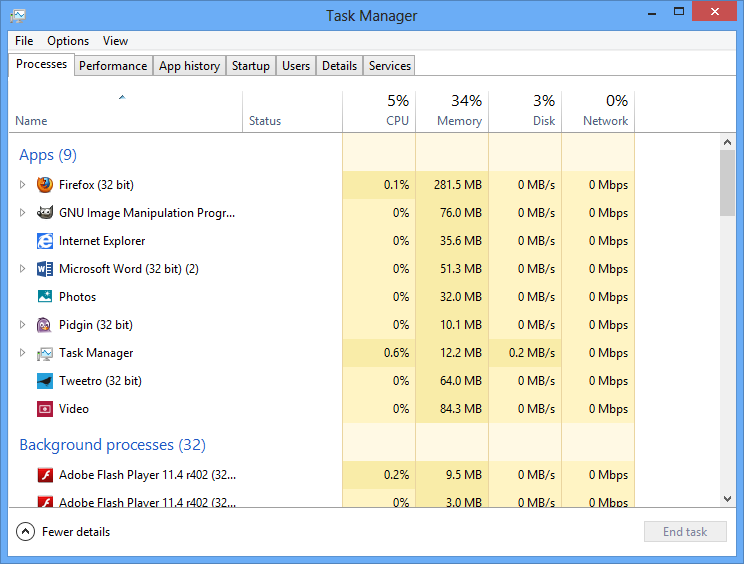
4. The New Task Manager
I love access to more detailed system information and the new task manager gives you just that. It starts with a simple list of running applications and their current status, but click the more details tab and you get a nice presentation of the running processes and system performance. Under the user tab you can even see running processes grouped by user.
5. More Accurate Progress Bars
This may seem like a trivial point, but it always irked me that when transferring files the progress bar constantly changed it's estimate and never seemed correct --- 5hrs remaining, 2hrs 30min remaining... right. The new presents more information about the speed of the transfer and gives you a more accurate (as far as I have tested) estimate of the time remaining.
6. Startup and Shutdown Times
Windows 8 loads and shutsdown quicker than any previous Windows (that I can remember).
--WHAT I DON'T LIKE--
1. Closing Apps
Why is it so difficult to close an app? I don't like a cluttered desk, or a cluttered desktop. Equally I don't like applications running unnecessary in the background, even if they are in a suspended state.
Apps don't have a cross/close button at the top right. Instead you have to move your cursor to the top of the screen and then drag (holding the mouse button) to the bottom on the screen . Alternatively you can use the shortcut Alt+F4
2. Navigating Between Apps
I also don't understand why when you close an app it doesn't go back to either: the last app you had open, the home screen, or the desktop. I find that quite often it will leave me with a blank screen.
So when you close down Internet Explorer after viewing a link someone sent you in an email it doesn't automatically go back to the email.
3. The Messaging App
This little app is supposed to make sending messages over your favourite social networking sites easier. But it's clunky and in my opinion unnecessary. The feature should have just been built into the people app, which does an excellent job of combining your contact information from a number of sources.
4. Sizing
The whole Windows 8 Experience is designed to be touch-friendly. This is great if you are using a touch device but if you're not I find that everything is scaled unnecessarily large. These can be tweaked slightly - you can tell the new start screen to display more tiles for example.
A couple of Shortcut Keys that might come in handy:
Win+Q: Search apps (or just start typing from the home screen)
Win+W: Search settings
Win+F: Search files
Win+D: Open desktop
Win+,: Peek at desktop
Win+B: Back to desktop
Win+Z: Get to app options
Win+.: Snap app to the left
Win+Shift+.: Snap app to the right
Alt+F4: Close an app
Win+X: Open system utility settings menu
Win+PrntScrn: Take screenshot and save to Pictures
Win+Tab: Open switch list
Win+T: Preview open windows in taskbar
In summary (for those who don't want to read any more than they have to!) - I like it. As with any new operating system there are things that I haven't quite got used to, but weighed against these slight annoyances, are a bunch a nice changes:
--WHAT I LIKE--
1. Apps
I also like being able to snap the apps to one side of the desktop. This is great for when your using one monitor and want to keep an eye for any emails coming in.
2. The New Look Windows Explorer
Windows Explorer now has a ribbon just like Office 2010. This puts a lot of the options, such as show/hide hidden files, file name extensions within much easier access.
Microsoft have also brought back the ^ button next to the address allowing you to quickly navigate to the folder above the one you are currently in.
3. Achievements
I'm an XBOX gamer and I'm not afraid to admit that I'm slightly addicted to achievements. So what can be better than getting some easy and free achievements from the standard Windows games like minesweeper and solitaire? Awesome!
4. The New Task Manager
I love access to more detailed system information and the new task manager gives you just that. It starts with a simple list of running applications and their current status, but click the more details tab and you get a nice presentation of the running processes and system performance. Under the user tab you can even see running processes grouped by user.
5. More Accurate Progress Bars
This may seem like a trivial point, but it always irked me that when transferring files the progress bar constantly changed it's estimate and never seemed correct --- 5hrs remaining, 2hrs 30min remaining... right. The new presents more information about the speed of the transfer and gives you a more accurate (as far as I have tested) estimate of the time remaining.
6. Startup and Shutdown Times
Windows 8 loads and shutsdown quicker than any previous Windows (that I can remember).
--WHAT I DON'T LIKE--
1. Closing Apps
Why is it so difficult to close an app? I don't like a cluttered desk, or a cluttered desktop. Equally I don't like applications running unnecessary in the background, even if they are in a suspended state.
Apps don't have a cross/close button at the top right. Instead you have to move your cursor to the top of the screen and then drag (holding the mouse button) to the bottom on the screen . Alternatively you can use the shortcut Alt+F4
2. Navigating Between Apps
I also don't understand why when you close an app it doesn't go back to either: the last app you had open, the home screen, or the desktop. I find that quite often it will leave me with a blank screen.
So when you close down Internet Explorer after viewing a link someone sent you in an email it doesn't automatically go back to the email.
3. The Messaging App
This little app is supposed to make sending messages over your favourite social networking sites easier. But it's clunky and in my opinion unnecessary. The feature should have just been built into the people app, which does an excellent job of combining your contact information from a number of sources.
4. Sizing
The whole Windows 8 Experience is designed to be touch-friendly. This is great if you are using a touch device but if you're not I find that everything is scaled unnecessarily large. These can be tweaked slightly - you can tell the new start screen to display more tiles for example.
A couple of Shortcut Keys that might come in handy:
Win+Q: Search apps (or just start typing from the home screen)
Win+W: Search settings
Win+F: Search files
Win+D: Open desktop
Win+,: Peek at desktop
Win+B: Back to desktop
Win+Z: Get to app options
Win+.: Snap app to the left
Win+Shift+.: Snap app to the right
Alt+F4: Close an app
Win+X: Open system utility settings menu
Win+PrntScrn: Take screenshot and save to Pictures
Win+Tab: Open switch list
Win+T: Preview open windows in taskbar
Wednesday, 26 September 2012
How Toy Story 2 was saved through system backups!
Toy Story 2 is one of the most successful animation movies of all times and has so far grossed over $485 million over the world. Despite this did you know that the movie was nearly lost after a designer accidentally deleted all the film’s files?
Pixar have created a short video showing how their Toy Story 2 files were very nearly lost. This is the perfect example of how a business can lose millions of pounds of data through a simple error. Luckily in Pixar’s case the data had been backed up by one of the team and they could restore it by getting their computer. However if Galyn hadn’t wanted to work from home we may never have seen Toy Story 2. Today Pixar would only need to install a backup product such as Fusion's Offsite Backup to restore their files with ease.
Saturday, 22 September 2012
Windows 8 - The Marmite effect?
Marmite you either love it or you hate it right? Windows 8 in my opinion is in the same mind set as Marmite. That said I used to hate olives, a wise person once told me that be persistent with eating olives and one day you will love them..... Maybe its the same with Marmite?
I have been running Windows 8 now for about a month along with the Office 2013 preview, when I eventually got my system up and running (more about that later) I found myself hating it to start with, but I can now fondly look back over the last 4 weeks and see it as a learning curve.
The install of Windows 8 is very fast, I recon you can build a system from scratch in about 15 minutes, the whole process is very slick and it doesn't take a rocket scientist. I personally opted for the UEFI option as opposed to the standard legacy BIOS boot, this caused me a few issues. Mainly because I was using our Zalman virtual cd drive which doesn't seem to detect the presence of UEFI bootable media, after a couple of failed attempts I quickly burnt the image to a DVD and 12 minutes later I was presented with themetro modern desktop.
There are a few drivers missing for my system (Dell Latitude E6420), namely the fingerprint reader and the SD card reader, both of which I very rarely use so will put up with until the official Windows 8 drivers are released. Again maybe its me been a little OCD, but what is the point making your system unstable by installing drivers that weren't designed for it?
I built my system at home but as this was a work machine I needed it to be part of the domain and it would then benefit from our DirectAccess connectivity back to HQ. I setup our firewall to allow PPTP access, joined it to the domain, did a quick "GPUPDATE / force" and before you know it I was up and running.
I quickly installed my favourite apps, I like to keep my system relatively clean, I guess its a bit of a OCD thing I have going. On the whole it went relatively smooth though I did hit a couple of snags;
How do I get to the desktop?
A couple of ways I have found, when inmetro modern you can press the Windows button (The Windows button will become your friend in Windows 8), you can also type Desktop and click on the icon, I have also found escape works but I think you need to have some non native Windows 8 apps running for this to work. You can also alt and tab if you are in the modern desktop
Where has my show desktop icon gone?
Easily just put your mouse in the bottom right hand corner, right click and press show desktop.
How do I see all my apps that are installed?
Right click in modern and select the All Apps icon in the bottom right, this is especially useful if you want to see an app that you have hidden.
How do I shutdown my machine?
Again a couple of options, the easiest I have found is by pressing the Start+I combination which brings up the settings for the current context. You will always have the power icon on there and you can just select this and decide the computers fate.. You can also use the Alt F4 shortcut when you are on your desktop.
What is my charms bar?
This is a context sensitive system wide bar with a total of 5 buttons; Search, Share, Start, Devices and Settings. While the buttons appear from the right side, a notification panel appears from the left side displaying the Current Time, Day, Date, Internet Connection and Battery Power Status. You can get to it by moving your mouse to the top right or pressing Start+C.
Where has my Windows Aero gone?
Microsoft have dropped this feature stating it was "dated and cheesy", there are people who are currently building modifications to bring this back. But is it worth it for something that brought very little value? Just use alt tab or hover over the relevant application icon on the taskbar.
What happened to my easy to find options in the start menu?
There is a hidden basic start menu which will get you to all your much loved areas of Windows, device manger, system menu etc.... Just hover over the bottom left of any screen until the modern UI icon pops up and then right click. You can also press Start+X at any point.
How do I name my networks?
Any wireless network seems to name its connection by its SSID which is fine. Any wired network just gets named Network 1, Network 2 etc... I have found a way in the registry to change this but no easy way in the UI, would love to hear if someone has found a way or Microsoft's reasoning for taking away something that was easily done in Windows 7.
So to a couple of things I really like;
At Fusion we need to start exploring the management side of Windows 8 and ensure that we can support it effectively, we have already started this so watch this space. Depending on how our internal testing goes we will be looking all rolling out Windows 8 to certain clients in the next 6 - 12 months. If you are interested in what Windows 8 can do for you, why not get in contact with us?
I have just scratched the surface here, but what I hope to get across is don't believe everything that people are saying about Windows 8, its not the next Vista. Vista was disappointing, even Microsoft admit this, but Windows 8 is more like olives. If you try it enough and persist you will end up thinking how did you live without it.
I have been running Windows 8 now for about a month along with the Office 2013 preview, when I eventually got my system up and running (more about that later) I found myself hating it to start with, but I can now fondly look back over the last 4 weeks and see it as a learning curve.The install of Windows 8 is very fast, I recon you can build a system from scratch in about 15 minutes, the whole process is very slick and it doesn't take a rocket scientist. I personally opted for the UEFI option as opposed to the standard legacy BIOS boot, this caused me a few issues. Mainly because I was using our Zalman virtual cd drive which doesn't seem to detect the presence of UEFI bootable media, after a couple of failed attempts I quickly burnt the image to a DVD and 12 minutes later I was presented with the
There are a few drivers missing for my system (Dell Latitude E6420), namely the fingerprint reader and the SD card reader, both of which I very rarely use so will put up with until the official Windows 8 drivers are released. Again maybe its me been a little OCD, but what is the point making your system unstable by installing drivers that weren't designed for it?
I built my system at home but as this was a work machine I needed it to be part of the domain and it would then benefit from our DirectAccess connectivity back to HQ. I setup our firewall to allow PPTP access, joined it to the domain, did a quick "GPUPDATE / force" and before you know it I was up and running.
I quickly installed my favourite apps, I like to keep my system relatively clean, I guess its a bit of a OCD thing I have going. On the whole it went relatively smooth though I did hit a couple of snags;
- Activating caused me a few issues, I am not sure why yet. I suspect its because Windows 8 Enterprise was looking for our internal activation server (which we don't have), the resolution to this was to use the following command in an elevated command prompt slmgr.vbs -ipk "YOUR_PRODUCT_KEY".
- I then came to install our helpdesk software, this needed .NET 3.5 windows feature enabling to install correctly. Seems that Windows 8 uses Windows Update to install new features, I am guessing that this is what gives the OS a much smaller foot print. Anyway I got round this my using the CD and the dism command "dism.exe /online /enable-feature /featurename:NetFX3 /Source:f:\sources\sxs", which effectively installs the feature from the source CD. I think the reason for this was that we are using an internal Windows 8 R2 servers as our WSUS server, I am assuming that an update will be released or we may have to upgrade this to Windows 2012.
How do I get to the desktop?
A couple of ways I have found, when in
Where has my show desktop icon gone?
Easily just put your mouse in the bottom right hand corner, right click and press show desktop.
How do I see all my apps that are installed?
Right click in modern and select the All Apps icon in the bottom right, this is especially useful if you want to see an app that you have hidden.
How do I shutdown my machine?
Again a couple of options, the easiest I have found is by pressing the Start+I combination which brings up the settings for the current context. You will always have the power icon on there and you can just select this and decide the computers fate.. You can also use the Alt F4 shortcut when you are on your desktop.
What is my charms bar?
This is a context sensitive system wide bar with a total of 5 buttons; Search, Share, Start, Devices and Settings. While the buttons appear from the right side, a notification panel appears from the left side displaying the Current Time, Day, Date, Internet Connection and Battery Power Status. You can get to it by moving your mouse to the top right or pressing Start+C.
Where has my Windows Aero gone?
Microsoft have dropped this feature stating it was "dated and cheesy", there are people who are currently building modifications to bring this back. But is it worth it for something that brought very little value? Just use alt tab or hover over the relevant application icon on the taskbar.
What happened to my easy to find options in the start menu?
There is a hidden basic start menu which will get you to all your much loved areas of Windows, device manger, system menu etc.... Just hover over the bottom left of any screen until the modern UI icon pops up and then right click. You can also press Start+X at any point.
How do I name my networks?
Any wireless network seems to name its connection by its SSID which is fine. Any wired network just gets named Network 1, Network 2 etc... I have found a way in the registry to change this but no easy way in the UI, would love to hear if someone has found a way or Microsoft's reasoning for taking away something that was easily done in Windows 7.
So to a couple of things I really like;
- The file copy has a graph, nice to see what sort of throughput you are getting when you are copying files.
- Task Manager looks great and gives you lots more information
- Spell Check is now in IE and also in many modern desktop apps
- You can uninstall apps directly from the modern desktop
- Once we get better support from our existing apps to use things like tiles in the modern UI I think we will find ourselves spending less and less time on the desktop and more time in
metromodern. - It looks clean
- It boots and sleeps much faster.
- I like the simplified way of categorising networks, private or public and the fact you can switch between them by turning sharing on or off
- Like the idea of a store, though not used it much yet! There is a Remote Desktop modern desktop app which you can install.
- Ability to use Skydrive, I am told that DRM it also built into this which can help with company data leakage.
At Fusion we need to start exploring the management side of Windows 8 and ensure that we can support it effectively, we have already started this so watch this space. Depending on how our internal testing goes we will be looking all rolling out Windows 8 to certain clients in the next 6 - 12 months. If you are interested in what Windows 8 can do for you, why not get in contact with us?
I have just scratched the surface here, but what I hope to get across is don't believe everything that people are saying about Windows 8, its not the next Vista. Vista was disappointing, even Microsoft admit this, but Windows 8 is more like olives. If you try it enough and persist you will end up thinking how did you live without it.
Friday, 14 September 2012
The perfect power backup for servers
So recently we had an issue where our servers were all unavailable on a Sunday morning, we could only assume a powercut had taken place or one of the circuits had tripped.
To answer the posts subject, "The perfect power backup for server" would of course be an inline generator, effectively the power goes off, batteries take care of the providing power for a few seconds whilst the generator kicks in. Of course for most of us our IT systems do not warrant this sort of expense, you tend to find generators are used in data centres and large companies that host their own servers.
That said there is lots we can do to make sure that we look after our servers correctly.
So when a power outage occurs in my opinion you need a UPS (Uninterruptable Power Supply) that will do the following and in this order;
Even as I write this more and more scenarios come into my mind, lets take a look at some of them and how we have tackled them;
We still have the three same UPS's, one running the comms kit which will do so for about a hour until the battery is about 30%, obviously if we do loose power for a long period of time the management interface will always be up as this uses very little power. The servers are still split across the other two UPS's but now the redundant power supplies are setup to goto a APC AP7920 Switched Rack PDU, this also has a management interface so providing that we have comms (one of our 4 links coming into the building) we can always get onto all the UPS's and PDU. We have setup the PDU to wait 15 minutes if there is a disruption to its power source, this should mean that if the servers do start to shutdown and power gets restored mid shutdown, they should still come back up when power is restored to the UPS or 15 minutes after power is restored to the PDU. This means we can easly reboot all the servers remotely by powering them on and off at the mains, that said I don't like doing this as its not good for servers and defies the whole point of a graceful shutdown. We have also had a dedicated 20 AMP way installed into the server room that is used for powering the UPS's, this should ensure that another device in the building will not knock out our server room!
To ensure we are kept upto date with what is happening during a power failure we now SMS critical errors out of hours and also emailed using an external mail provider (bear in mind there is no point using your internal SMTP server to let you know that the power has been restored if the UPS's have shut it down).
We have spent lots of time researching and implementing this new solution, to be honest we don't have many power problems in our office and it will probably not happen again for another 10 years. But we have learn lots and I personally have enjoyed making our server room as resilient as possible with a limited budget. The other way to look at this is if we hadn't spent the time looking at our backup power solution now then maybe it would have caused us more problems in the future, what I mean by this is that we were lucky on that fateful Sunday morning, if the fuse hadn't of done its job there could have been a fire, the servers were OK, but an ungraceful shutdown could have corrupted data and caused us days of downtime in recovering our systems. End of the day lessons have been learnt and the world is now a better place for our increased in knowledge in the area.
Are you sure that your server room is fully covered? Give us a ring on 08451221240 for a free server room assessment.
To answer the posts subject, "The perfect power backup for server" would of course be an inline generator, effectively the power goes off, batteries take care of the providing power for a few seconds whilst the generator kicks in. Of course for most of us our IT systems do not warrant this sort of expense, you tend to find generators are used in data centres and large companies that host their own servers.
That said there is lots we can do to make sure that we look after our servers correctly.
So when a power outage occurs in my opinion you need a UPS (Uninterruptable Power Supply) that will do the following and in this order;
- Power your servers until the battery only has enough juice to shutdown the servers. Obviously if the power is restored by such time then great! I would say that 10 minute or so on battery is more than adequate. If the power is off for 10 minutes you can assume its going to be a substancial powercut.
- Once the battery only has enough juice to power down the servers gracefully the UPS should issue the shutdown command to all the servers that it is connected to.
- The UPS should then wait a period of time and then turn off the output to the servers connected to the UPS. Now many UPS's have multiple output ports so you can setup these outputs to turn off after different amounts of time etc..
- Once power is restored the UPS should wait a period of time to restore power to the output ports to make sure the power isn't flapping. I would say that 60 seconds of continuous power is probably enough to safely say that power has been fully restored.
- Once power is restored the servers should automatically boot back up again and thus leave it in a usable state.
- You need to be notified of whats happening every step of the way. No point having problems and finding out about them first thing Monday morning or when an irate manager calls you.
Even as I write this more and more scenarios come into my mind, lets take a look at some of them and how we have tackled them;
- The first thing is to make sure that your UPS is working correctly. I have seen it time and time again, UPS's with red flashing lights usually mean that something is wrong. Do you know that if you let your UPS drain more than 30% you will almost definitely cause long term damage to it? One of the things you need to ensure is that your UPS is never allowed to drain fully, we tend to configure them so that they shutdown the output when they reach 30% no matter whats still running. You can even put a multimeter across the live and neutral points, find teh voltage and work out if the battery is faultly, search for lead battery condition and all will be revealed. Looking after batteries is a fine art in itself.
- Its worth doing a running test of a UPS to check that things are functioning correctly. I have heard of people using electric heaters to do this! If its not functioning correctly replace the battery. Did you know that most batteries depending on how they have been treated will only last between 3 & 5 years!
- You need to make sure that you test the run time with the maximum possible load going through the UPS, always work on the worst case scenario. You need to be careful of overloading the UPS.
- Are you using the right plugs on your UPS with the right fuses in? Kettle leads can quite often have either 5 or 10 amp fuses in. Some UPS's can easily pull more than 5 amps!
- If the servers do shutdown the UPS should only power them back up when the power supply is stable again and when the UPS(s) have enough power to start them up and then shut them back down should another power failure occur.
- What about if your servers have redundant power supplies? Well this again opens another can of worms. Do you just plug both the PSU's into the same UPS? Surely this is a single point of failure? Do you plug one PSU into the UPS and one into the wall socket? Do you have multiple power sources / multiple ways coming into the room? In a ideal scenario you would have two UPS's that talk to each other and each UPS into a different power supply / way and plug PS1 into one UPS and PS2 into the other... The only thing is UPS's are not cheap! You have also got to make sure that your switch is powered by a UPS otherwise if your servers loose comms to the UPS the UPS will be unable to issue the shutdown command once the runtime threshold has hit.
- Lets just say you do plug one PS into the UPS and the other into the wall (obviously using a surge protector) what happens if the power goes on the UPS side? Well eventually the UPS will shutdown these servers even though they have a perfectly good power supply coming from the wall socket.
- The way you configure servers to start automatically when power is restored is to enable the setting on the BIOS to power on with AC connect (please bear in mind that this setting is usually disabled by default). Basically if the servers shutdown via the UPS and they still have a good power supply from the other PSU to servers will never switch on again because effectively they never lost power. Once way around this I guess is using some kind of management card for the server that allows you to power it on remotely. Note: You can enable this setting on Dell servers with Open Manage installed by using the omconfig command line, search the web for more details there is plenty of documentation on this.
- What happens if the power goes off on both power sources the UPS eventually shutdown the servers, but as the servers are shutting down power is restored. I guess in this scenario you are in a similar position to my last bullet point.
- What about yours comms kit? Most comms kit doesn't have support for UPS communications! It is this sort of kit that will drain your battery to its last few percent.
We still have the three same UPS's, one running the comms kit which will do so for about a hour until the battery is about 30%, obviously if we do loose power for a long period of time the management interface will always be up as this uses very little power. The servers are still split across the other two UPS's but now the redundant power supplies are setup to goto a APC AP7920 Switched Rack PDU, this also has a management interface so providing that we have comms (one of our 4 links coming into the building) we can always get onto all the UPS's and PDU. We have setup the PDU to wait 15 minutes if there is a disruption to its power source, this should mean that if the servers do start to shutdown and power gets restored mid shutdown, they should still come back up when power is restored to the UPS or 15 minutes after power is restored to the PDU. This means we can easly reboot all the servers remotely by powering them on and off at the mains, that said I don't like doing this as its not good for servers and defies the whole point of a graceful shutdown. We have also had a dedicated 20 AMP way installed into the server room that is used for powering the UPS's, this should ensure that another device in the building will not knock out our server room!
To ensure we are kept upto date with what is happening during a power failure we now SMS critical errors out of hours and also emailed using an external mail provider (bear in mind there is no point using your internal SMTP server to let you know that the power has been restored if the UPS's have shut it down).
We have spent lots of time researching and implementing this new solution, to be honest we don't have many power problems in our office and it will probably not happen again for another 10 years. But we have learn lots and I personally have enjoyed making our server room as resilient as possible with a limited budget. The other way to look at this is if we hadn't spent the time looking at our backup power solution now then maybe it would have caused us more problems in the future, what I mean by this is that we were lucky on that fateful Sunday morning, if the fuse hadn't of done its job there could have been a fire, the servers were OK, but an ungraceful shutdown could have corrupted data and caused us days of downtime in recovering our systems. End of the day lessons have been learnt and the world is now a better place for our increased in knowledge in the area.
Are you sure that your server room is fully covered? Give us a ring on 08451221240 for a free server room assessment.
Tuesday, 4 September 2012
Correct use of ADSL faceplace splitters and extensions
Many of you will quite often double up you phone line / fax with your Internet connection. Previously we have used ADSL splitters that plug into the existing standard BT socket. More recently I have been getting a ADSL faceplate to swap out the lower part of the BT NTE5 socket, these are great because they are less likely to get snagged / break and a far neater solution.
The beauty of using one of these faceplates is that you can run extensions from it that already have a filtered connection. Therefore if you connect pins 2 & 5 on the 6 way IDC block (there are some 3 way versions out there, but again the pins are the same) to your extension you will get dial tone without the worries of your internal cabling causing you issues with your ADSL connection.
Its also worth nothing that you can get a unfiltered connection perfect for your ADSL modem by connecting pins A & B. This is good if you would like to put your router in a different location to your master socket and still get the benefits of a central filter.
You could make it a nice neat solution by terminating the unfiltered connection on a RJ11 socket. Also that way it will deter someone from putting in standard telephone and causing disruption to your Internet connection.
We quite often use a CAT5 cable to get the point where we need it (for example where the FAX is located), a nice neat trick is to cut the end off a RJ45 cable and crimp the blue and blue/white pair into pins 2 & 5, this should be the middle pair on a properly made cable. You can then plug a RJ11 directly into the CAT5 socket.
The beauty of using one of these faceplates is that you can run extensions from it that already have a filtered connection. Therefore if you connect pins 2 & 5 on the 6 way IDC block (there are some 3 way versions out there, but again the pins are the same) to your extension you will get dial tone without the worries of your internal cabling causing you issues with your ADSL connection.
Its also worth nothing that you can get a unfiltered connection perfect for your ADSL modem by connecting pins A & B. This is good if you would like to put your router in a different location to your master socket and still get the benefits of a central filter.
You could make it a nice neat solution by terminating the unfiltered connection on a RJ11 socket. Also that way it will deter someone from putting in standard telephone and causing disruption to your Internet connection.
We quite often use a CAT5 cable to get the point where we need it (for example where the FAX is located), a nice neat trick is to cut the end off a RJ45 cable and crimp the blue and blue/white pair into pins 2 & 5, this should be the middle pair on a properly made cable. You can then plug a RJ11 directly into the CAT5 socket.
Subscribe to:
Posts (Atom)


.jpg)